
Manage Gift Store
Once your users have sent recognitions, completed challenges or survey. They will have had collected points for exchange. You as a company can create a gift shop with a combination of any different gifts for you team. This can include merch you already own, gift cards and all other goodies. It is entirely up to you. The only addition part we have added is the available Printful integration.
Press on the button "Add New Gift" to start the process. Add the title of the gift. Add description and image. Price in Peero currency. We suggest that the value equate to 10 points: 1 euro. But you can manage the value ratio based on how it fits best for the company.
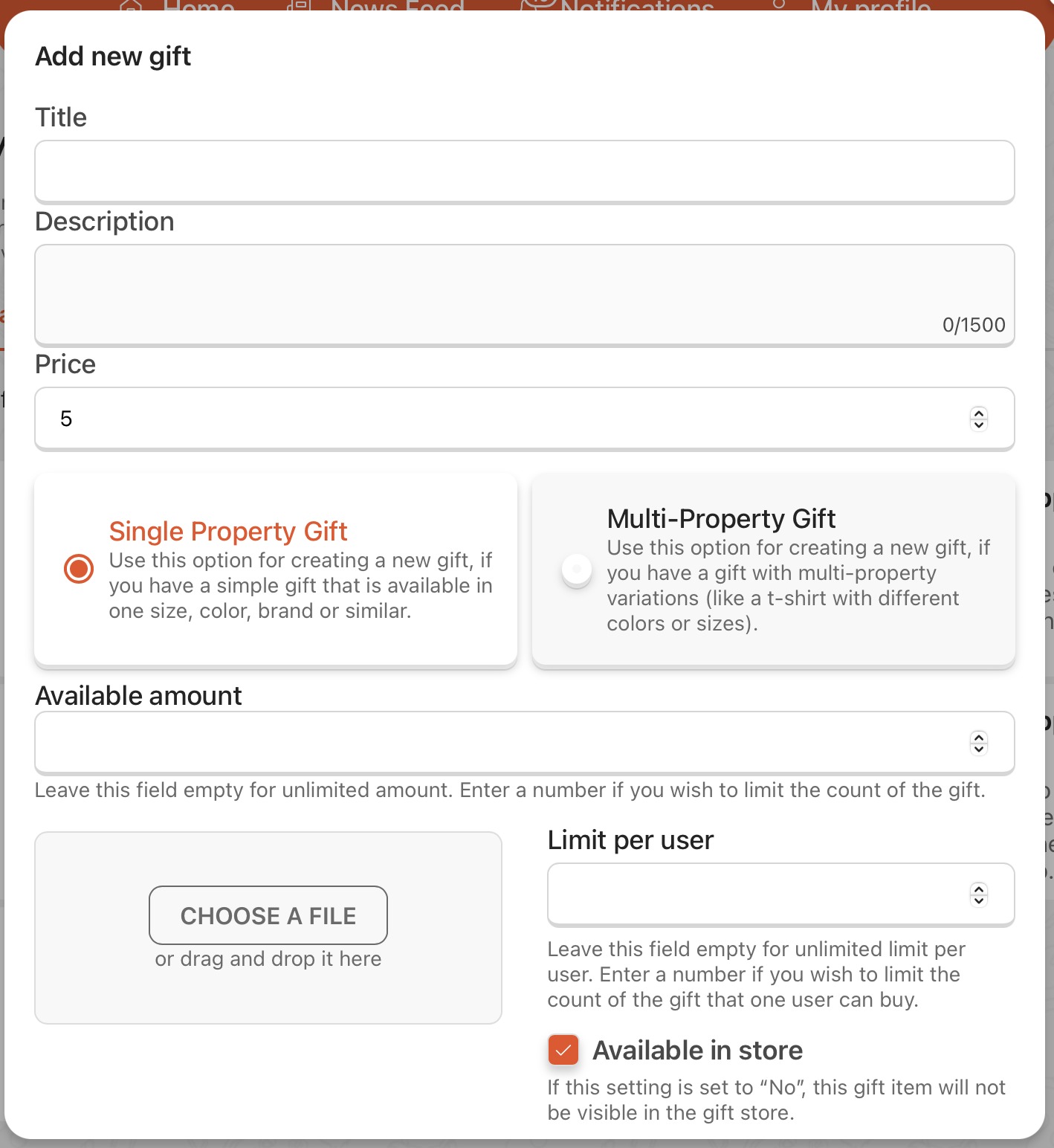
If the gift is available choose “Available in store. If you plan to add this gift later uncheck this section, and it won't appear in the employee gift store until you put a check in this section. Available amount- specify how many items are available in total, leave the field empty for unlimited amount. Set the limit for one user if it is necessary. If it is a gift that requires to specify size or dimensions of different kinds click on Multi-Property Gift. Use this option for creating a new gift, if you have a gift with multi-property variations (like a t‑shirt with different colors or sizes).
Enable the gift store when you are ready, after it will be done everyone will see the Gift Store button and available (active) gifts in their Peero app.
Manage Requests
Open manage requests to review, accept, deny, fulfill gift requests, and review request history. After the request will be approved, there will appear a “Fulfill” button. Employees will see that the gift request is approved but still will have the possibility to change mind and cancel the request.
For your convenience, we have prepared an option to export a .xlsm file, which may be useful for reporting and/or accounting purposes.
Settings
Manage the requests approval process. As well as enable your Printful integration and input Printful API key.
Gift Properties
If you have gifts with multiple properties (like a t‑shirt with different colors or sizes), use this feature to set up predefined categories and values (e.g., Color: red, green, white; Size: large, medium, small). These presets can then be used when creating gifts and managing their stock levels.