
Excel import template
How to import users with Excel import file template?
If you want to import users in the Peero App you need to prepare an Excel import file.
Peero_employee_import_template.xlsx
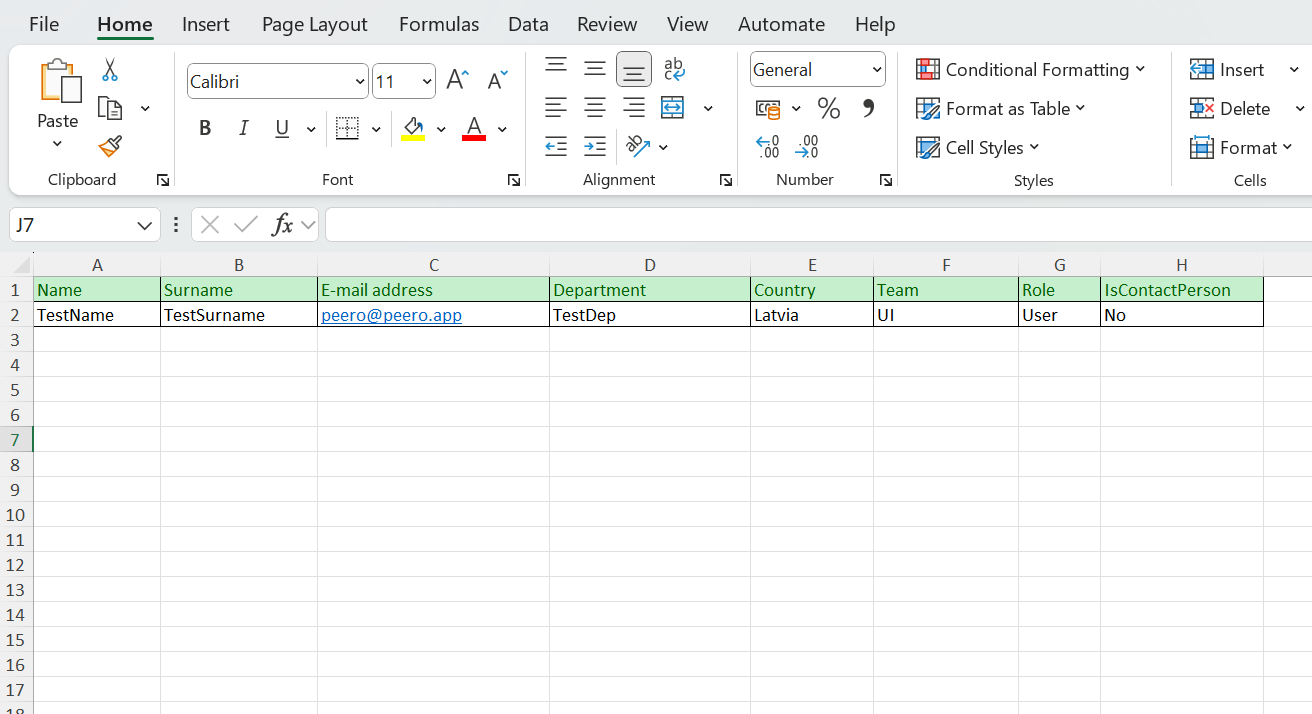
All you need to do is fill in your employee's details in the Excel template. You need to fill in the following information: Name; Surname; E-mail address; Department, Country and Team.
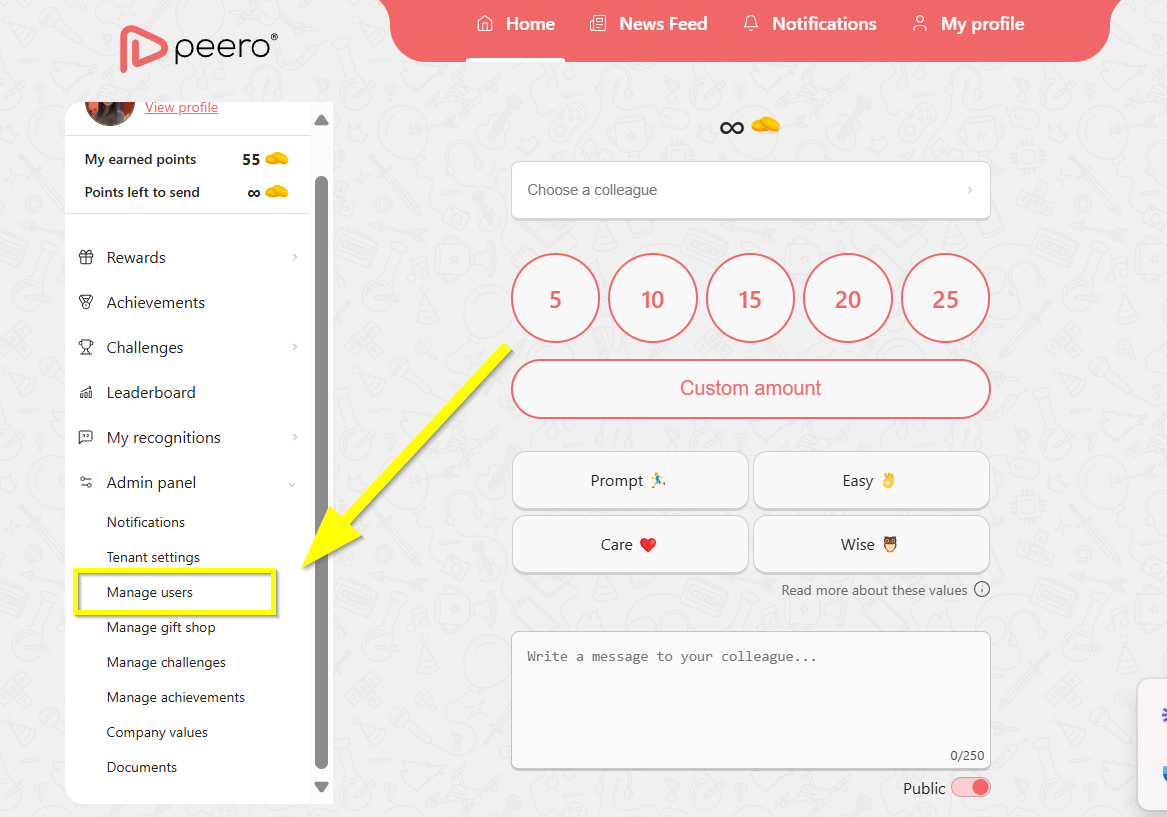
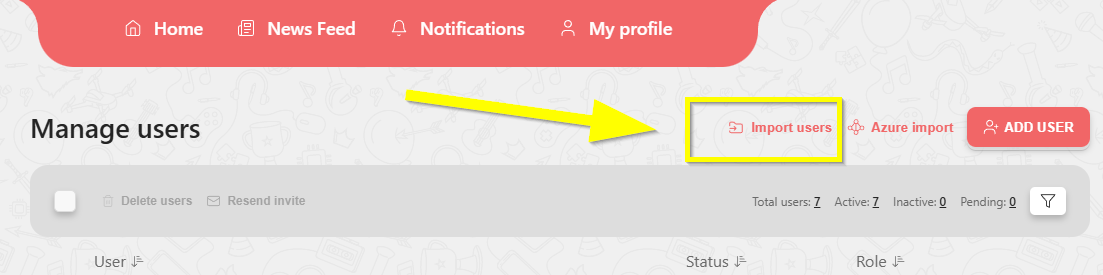
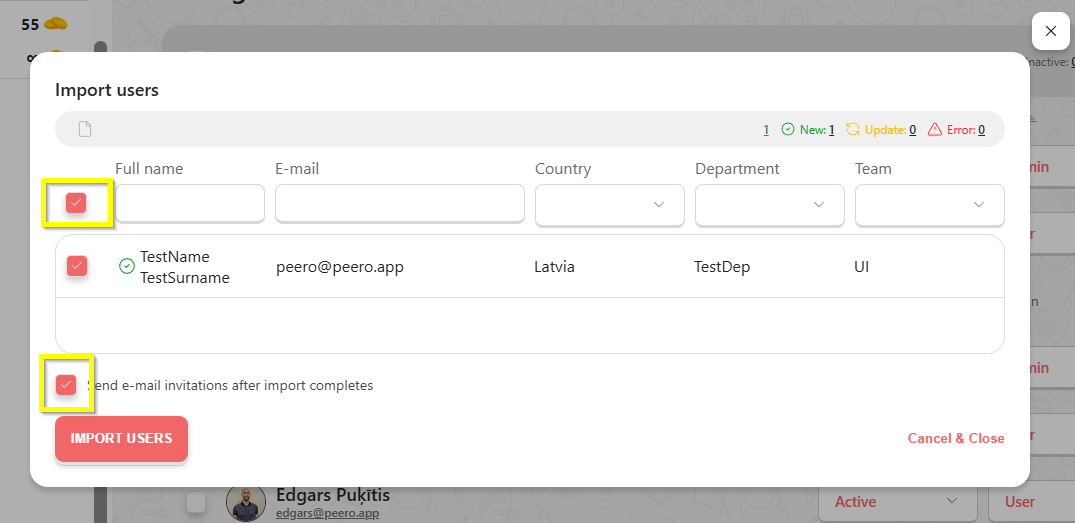
When the import file is prepared, please, open Peero App and open Admin panel ➡ Manage users ➡ Import users.
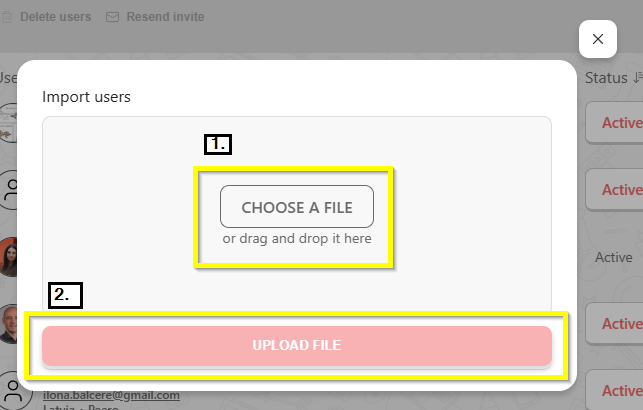
Upload Excel file → select all users→ “Send e-mail invitations after import completes”, if you want to send invitations to all users automatically and click on “Import users” button.
If App User’s invitation status is “Pending”, then they still have not completed registration.
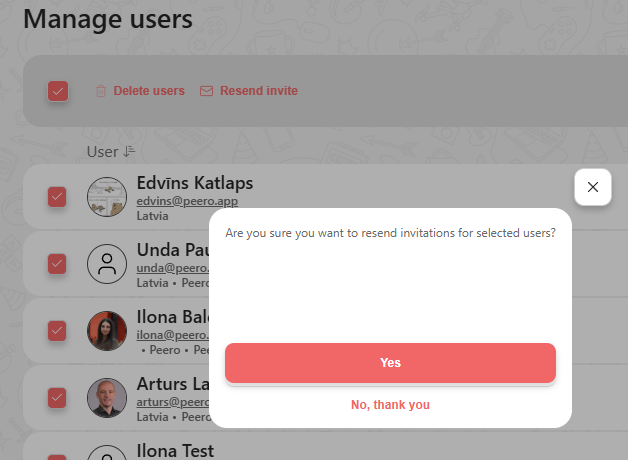
Select all App Users or only the list of filtered App Users to perform bulk actions (remove selected from the app or resend invitation link to all App Users with registration status as “Pending”). When performing bulk actions, you will be prompted to confirm this action.
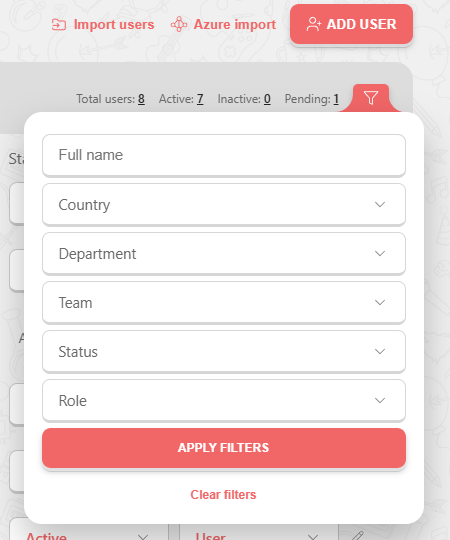
Use filters to quickly find App Users to see their status, edit or remove them.
❗️If you have any questions while getting set up, just email us at support@peero.app