
Import Users in Peero via AAD
Once your IT representative has registered the application in AAD and Peero Team has enabled user import via AAD in your Peero app, you can set up the connection.
- Access Tenant settings in Peero App Admin panel. Open and log-in with your App Admin account in Peero portal https://happy.peero.app/ . When Peero Team has enabled AAD import, you should see ‘Azure settings’ button in the Tenant settings page. Click on the button and a pop-up will open.

- Fill out the pop-up form. Copy and paste the necessary IDs from AAD. All the IDs are found in your Azure Portal.
First, copy and paste Application and Tenant IDs. You can find them in your Registered Application’s ‘Overview’.
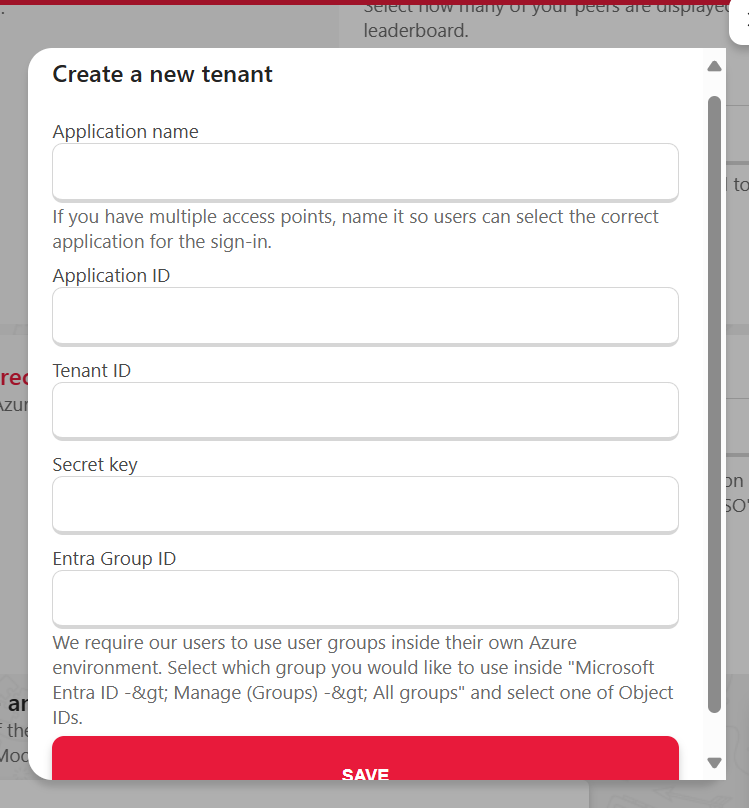
Second, copy and paste Secret Value. You can find it in your Registered Application’s ‘Certificates & secrets’ under ‘Client secrets’.
Third (optional), copy and paste AAD Resource group’s Object ID. You can skip this step, however, then all users in your organization’s AAD (including such accounts as printers, meeting rooms, etc.) will be imported in your Peero App.
We strongly recommend ticking the box next to ‘Use resource group’ - this means that only users added to a specific AAD Resource group will be imported in your Peero App.
To retrieve AAD Resource group’s Object ID, head to AAD and navigate to Groups in the side menu. Find the Resource group (or create a new one specific for this purpose), open it and copy the Object ID. Paste the ID in the pop-up under ‘Resource ID’.
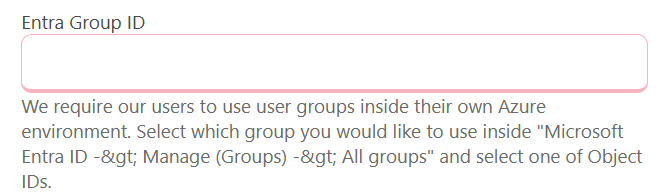
Once you have filled in all IDs, click ‘Connect’ and save the form.
- Import users. Navigate to ‘Manage users’ in Peero App Admin panel and click on the button ‘Azure import’. All the users in your AAD or in the specific AAD Resource group will show up as ‘New Users’. Select the users you want to import in your Peero App. Use the check box in the column header to select all users.
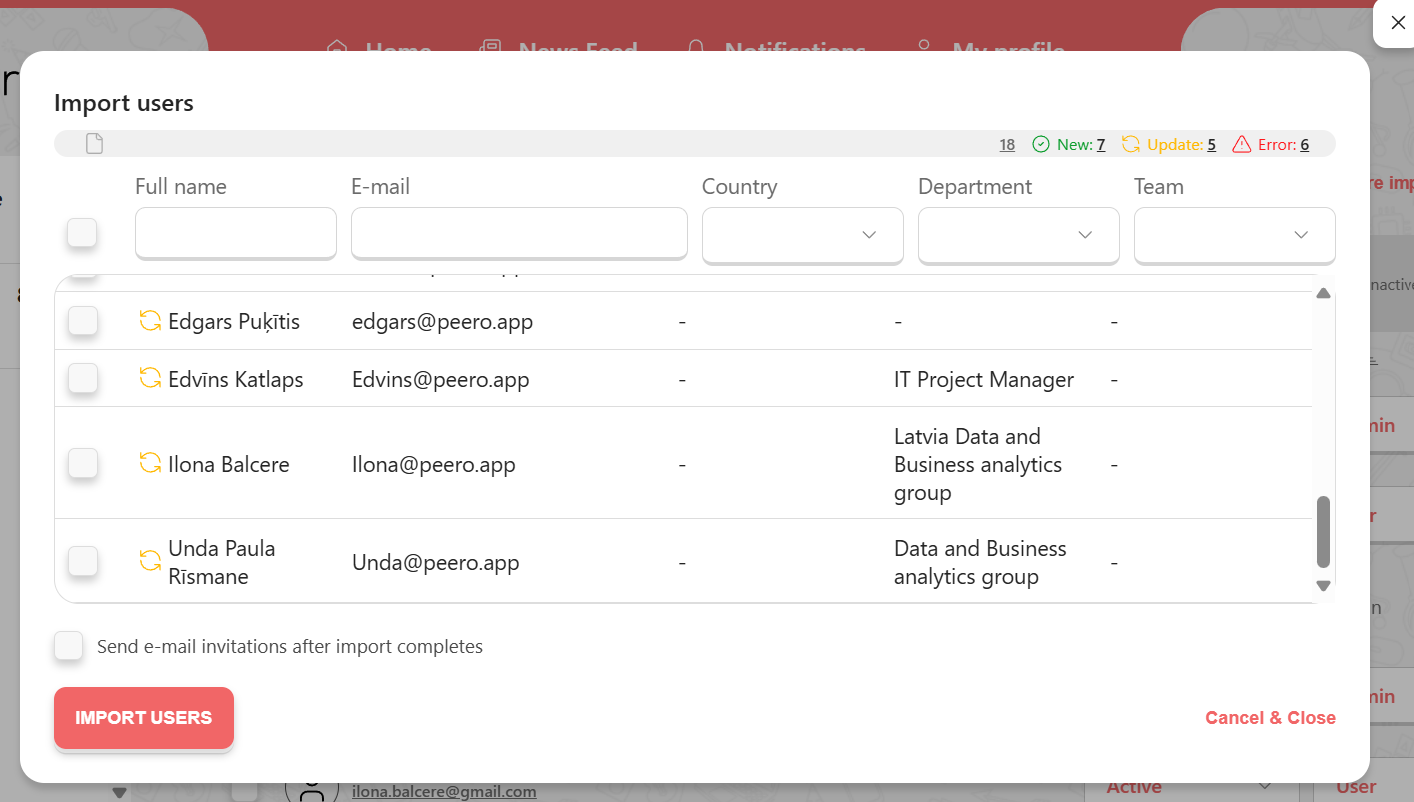
Remember: Make sure all the users have their e-mails listed in AAD contact information. If you are missing some contacts in Peero import window, this might mean that their user profiles are missing E-mail property in AAD. Peero looks for the e-mail property in AAD, not the User Principal Name.
3. Good to know
- Keep your user list up to date. If a new colleague has joined your team or you have made changes in, for example, department names in AAD, access ‘Manage users’ and click on ‘Azure import’. Depending on the changes you have made, you will be able to up to three groups:
✅ New users – users found in AAD, but not in Peero App;
✅ Update users – all existing users in AAD and in Peero App. If changes have been made to these users, select them to update their information;
✅ Delete users – users found in Peero App, but not found in AAD anymore.
- Activate and deactivate Peero users from AAD. You can synchronize user status in Peero with AAD. If, for example, an employee is having a longer leave of absence, your IT representative under user profile in AAD will block their sign in. Using Peero ‘Azure import’ these users will show up under ‘Update users’ with changed user status in Peero App from ‘Active’ to ‘Inactive’, meaning they will not be able to access their Peero account.
- In case of user's e-mail address change. If an employee’s e-mail address has been changed in AAD, the changes will be visible in Peero, if this user is only in one Peero App. In case of an e-mail address change for an employee who has two or more Peero accounts under the same e-mail address, please contact Peero Team.