
START USING PEERO ANALYTICS REPORT ON PowerBI Service
Learn how to install our analytics integration!
1. Open powerbi.microsoft.com using Microsoft Edge or Google Chrome web browser and click ‘Try free’.
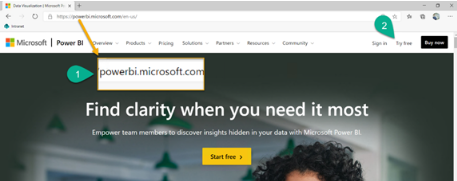
2. Click on ‘Try free’ once more. :)
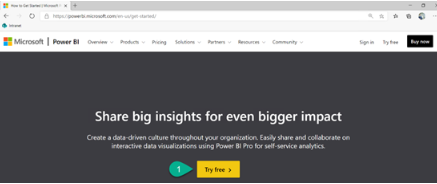
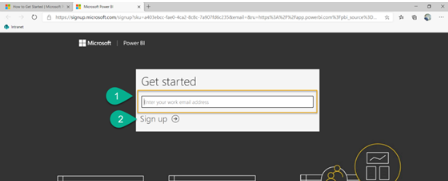
3. First, input your work email and then click ‘Sign up’.
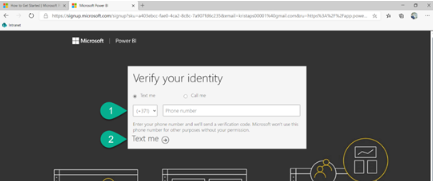
4. Input your phone number to receive a text message with a verification code and click ‘Text me’.
5. Enter the code sent to the phone number you provided previously.
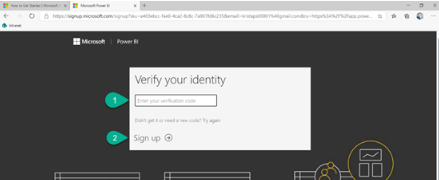
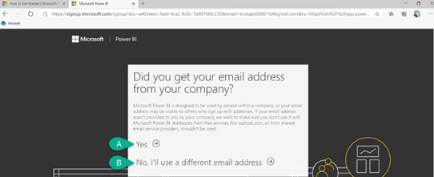
6. PowerBI Service will evaluate the email you entered – two scenarios are possible (A & B).
a. If PowerBI is not confident you have entered your work email address it is probably because you do not use Microsoft 365 at your organization. If you have entered your work email choose ‘Yes’ and continue. If not, choose ‘No’ to input your actual work email.
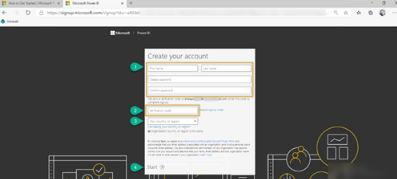
i. You will be presented with a new account creation form where you will create a password for further authentication in PowerBI Service.
You will also have to verify your email account by entering a code received to the email previously provided.
At last, click ‘Start’!
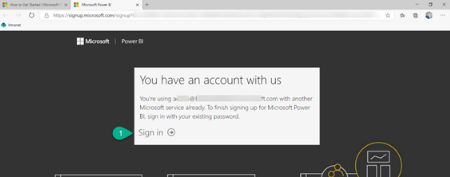
b. If you have Microsoft 365 account, PowerBI Service will recognize it and prompt you to sign in using its credentials.
i. You can agree to receive Microsoft’s informational emails, but you do not have to. Whichever you choose, click on ‘Start’!
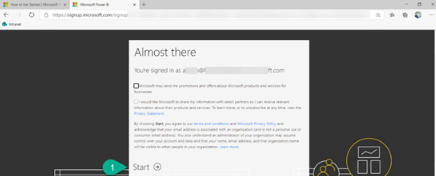
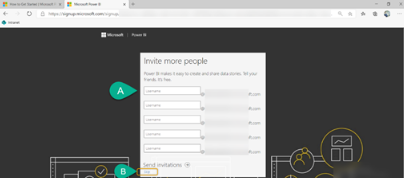
7. You can invite your colleagues to use PowerBI (A), but you do not have to if you choose ‘skip’ (B).
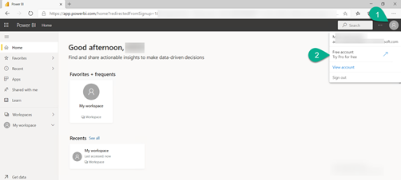
8. To access Peero Analytics Report you will need to activate the PowerBI Pro Trial license (60 days eligibility). From PowerBI home click on the top right corner on your profile icon. Then choose to start the trial (‘Try Pro for free’).
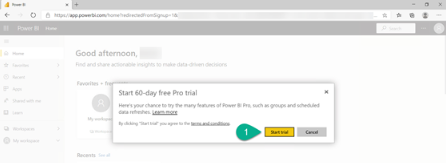
9. Click ‘Start trial’.
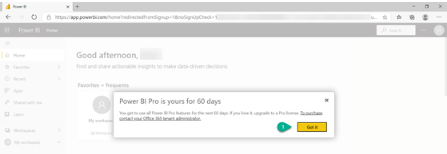
10. Click ‘Got it’. Great – you have successfully activated the PowerBI Pro Trial license (60 days eligibility)!
11. After activating the trial license, contact Peero Team who will deploy Peero Analytics. In your message, please, state the email (entered in Step 3) address with the assigned PowerBI Pro license. Remember – you can only access the analytics with an account with an assigned PowerBI Pro license.Afterward, you will receive an email from Peero Team with an attached link to your organization’s Peero Analytics.In the future, you will be able to access the analytics by using the link in the email or from your PowerBI Service.